
This was not what I was going to write about today – I was intending to write about Victorian Mesmerism and its place in my new novel A Fragile Thing (out March 17th). It is, however, something of an ongoing issue that I have come across for years now in manuscripts received for proofreading and formatting and, strangely, appears in the work of even the most experienced authors.
I think part of it is that Word can seem overwhelming, or even frightening, when you first experience it, and because of that people don’t discover the very things that would make their lives a hundred times easier. For years now, I’ve received, proofed, and formatted texts which continue to include the following:
- Indented paragraphs using spaces
- Indented paragraphs using tabs
- Indented paragraphs using tabs and spaces
- Centred headers in the same manner as above
- Used either soft returns or return to push text to a new page
Why is this frustrating (and annoying) to editors and formatters? Because it has to be stripped out before styles can be applied and is time consuming. Find and Replace can only do so much and if you’re not careful, that can also screw up the layout, especially if soft returns are used. If spaces and soft returns, in particular, remain in a document and are not caught, they can do very odd things to the appearance of text on paper and, even more so, in an ebook.
To keep any editor or publisher happy with your submission, here are a few very simple guidelines on how to give your text a professional appearance. There are different ways to do some of this, but the descriptions below are pretty much all you need.
Disclaimer: I DO know there are many writers who know all this, but I’m hoping this might help those who aren’t aware.
Show All

The most important thing is to have this feature turned on. It will make visible all your non-printing characters and can be found on the Home Task Bar:

Centring Headers and Other Text
Quick and easy: use the alignment feature in the Home Task Bar. Below shows centred, but you’ve also got the left, right, and justified options.
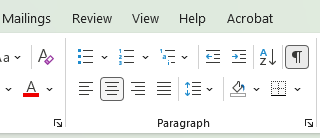
If something doesn’t appear quite right, ie the centring appears a little off, click on the arrow to the right of ‘Paragraph’. It will open up the Paragraph window and you can check that other features, eg left or right indents, are set to 0.
Indenting Paragraphs
There are a couple of ways to do this depending on whether you are indenting the whole paragraph or the first line.
To indent the whole paragraph: select Layout on the Task Bar.
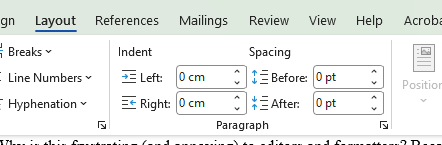
Enter the values you need in the left hand boxes.
To indent the first line of a paragraph – the most important thing to make an editor/publisher happy – open up the Paragraph window using the arrow on the task bar. This will appear:
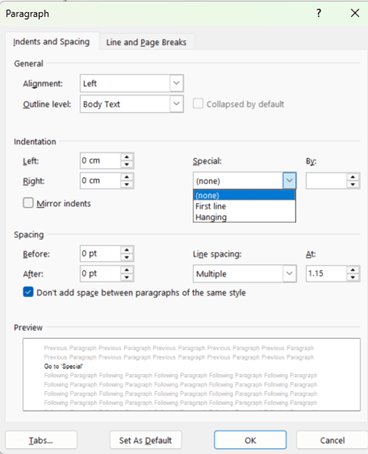
Go to ‘Special’, select First line and enter the value you require. Job done.
Starting a New Page
Do not hit enter (which I tend to call return)

or ‘shift enter’ to get a soft return:
Position your cursor at the end of the last line of text before the new page or section and go to Layout/Breaks. For a new page, click on Page at the top of the list. For a new section, go to the lower half of the panel. The most common usage is Section Breaks, Next Page.
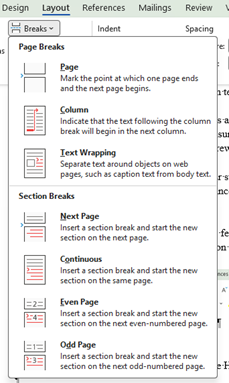
Your cursor will then appear at the top of a blank page.
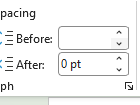
Creating Gaps Between Text Without Using Enter:
Again, go to Layout and simply adjust the values in Before/After as needed.
A Note on Spaces and Non-Breaking Spaces
Non-breaking spaces can also cause issues, so please make sure that these are only included in the text where absolutely necessary. For some reason I’ve found them appearing all over the place in a somewhat random manner in manuscripts. Non-breaking spaces can really affect the look of a justified paragraph. Below is just an example, but odd non-breaking spaces do really appear in this manner in manuscripts I’ve come across!

I’ve a feeling a lot of this might be down to the software originating the text but I would really encourage you to do a quick check for these before you send in.
Styles are Your Friend
Word becomes even easier to use with its Styles feature. You can set up values for your headers, first paragraph, remaining paragraphs, scene breaks etc. Once this is done, you can then apply that style to whatever paragraph you need without having to faff around with indents, alignments etc. Not only that, you can create a template for future books so that it’s all saved for new works AND you can import/export styles between documents.
Give me a few months and I might come back with a Simple Guide to Styles.


 Stephanie Ellis